Life360
How to freeze or fake your Life360 location on Android
Every off switch Life360 gives you tells your circle. Turn off Location Sharing and they see “Location Sharing Paused” under your name. GPS Spoofer leaves sharing on and gives Life360 a location you choose instead, held in one spot or moved at walking or driving speed. The Full edition hides the mock-location flag. $10 once, no root, no monthly fee.
Why pausing Life360 says “paused”
Life360’s own help center lists what your circle sees when you stop sharing. Each of the built-in ways shows them a message:
| What you do | What Life360 says your circle sees |
|---|---|
| Turn off Location Sharing in Life360 | “Location Sharing Paused” under your name |
| Turn off location services on the phone | A “Location permissions off” alert |
| Log out of Life360 | A “Logged out of Life360” alert |
| Phone loses its connection (no signal, airplane mode) | Your icon greyed out on the map |
| Spoof with GPS Spoofer | None of the four above applies: sharing stays on, location services stay on, you stay logged in and connected. Life360 gets the location you set. |
How to make Life360 stay in one place
- In GPS Spoofer, search for a place or tap the map, then tap Spoof Here.
- Your phone now reports that spot as its GPS, network and fused location, the three sources Android apps read, and keeps reporting it until you tap Stop.
- To move, tap a new spot and Move Here, or use the joystick or a route at walking or driving speed.
- Open Life360 the way your hiding method needs (below). It reads the location your phone reports.
Life360 keeps sharing the whole time; nothing is switched off. That is the difference between freezing your location and pausing it.
How an app can tell a location is fake
- Mock location flag. Android marks every location from a mock location app:
Location.isMock()returns true. Any app can read it, Life360 included. - Developer Options and the mock location setting. Apps can check whether Developer Options are on and whether a mock location app is selected.
- Movement that does not add up. Life360 keeps a location history. A jump from one city to another in seconds, or a phone that never moves for days, stands out on that timeline.
A free fake-GPS app from the Play Store sets the coordinates you want but leaves the mock flag visible, so any app that checks can see the location is mocked.
How GPS Spoofer hides it from Life360
GPS Spoofer’s Full edition ($10, one-time) has three ways to keep the mock flag from Life360, all without root:
- Hide from Apps — patches Life360 so its
isMock()check returns false. Life360 is one of the six apps it patches directly. You uninstall the original Life360 and install the patched copy. - Container mode — runs Life360 inside a companion container app, which hands it the location with
isMock()false. Your normal Life360 install is untouched; you log in again inside the container. - ADB stealth — a one-time setup from a computer that hides Developer Options and the mock location setting from apps. Use it alongside either method above.
Hide from Apps or Container mode?
| Hide from Apps | Container mode | |
|---|---|---|
| Your normal Life360 | Replaced by the patched copy | Kept; Life360 also runs inside the container |
| Google Sign-In | Does not work in patched apps. Switch your Life360 login to email or phone first. | Log in again inside the container |
| When Life360 updates | Re-patch: the Play Store cannot update a patched app | Update inside the container |
Step by step: fake your Life360 location with GPS Spoofer
- Buy GPS Spoofer Full ($10). Your download link arrives by email. Install the APK.
- Open GPS Spoofer and follow its two setup steps: turn on Developer Options, then select GPS Spoofer as the mock location app.
- Hide the mock flag: open Hide from Apps and patch Life360, or open Container Mode, install the container (one tap) and add Life360 inside it.
- In GPS Spoofer, pick the location you want and tap Spoof Here.
- Open the patched Life360, or Life360 inside the container. It reads the spoofed location as your phone’s location.
To also hide Developer Options from Life360, set up ADB stealth once from a computer:
adb shell pm grant com.gpspoofer.app android.permission.WRITE_SECURE_SETTINGSGPS Spoofer vs. the other ways to hide from Life360
| GPS Spoofer Full | Free fake GPS apps | Pause sharing in Life360 | Location services off | |
|---|---|---|---|---|
| Price | $10 once | Free | Free | Free |
| Hides mock flag | Yes | No | N/A | N/A |
| Life360 gets a location from your phone | Yes, the spot you choose | Yes, flagged as mock | No | No |
| What Life360 says your circle sees | Not tested by us | Not tested by us | “Location Sharing Paused” | “Location permissions off” |
| Root needed | No | No | No | No |
Tips to avoid suspicion
- Do not teleport. If you are at home and suddenly appear 200 miles away, the jump is visible in your Life360 timeline. Move gradually, or only change location when enough time has passed for a real trip.
- Move realistically. Use the joystick or a route at walking or driving speed so your dot moves the way a person would.
- Battery level. Life360 shows your circle your battery percentage. Software cannot change it.
- Wi-Fi networks. A Wi-Fi network you are connected to has a known location. Disconnect from Wi-Fi while spoofing, or spoof to a spot near the network you are on.
Screenshots
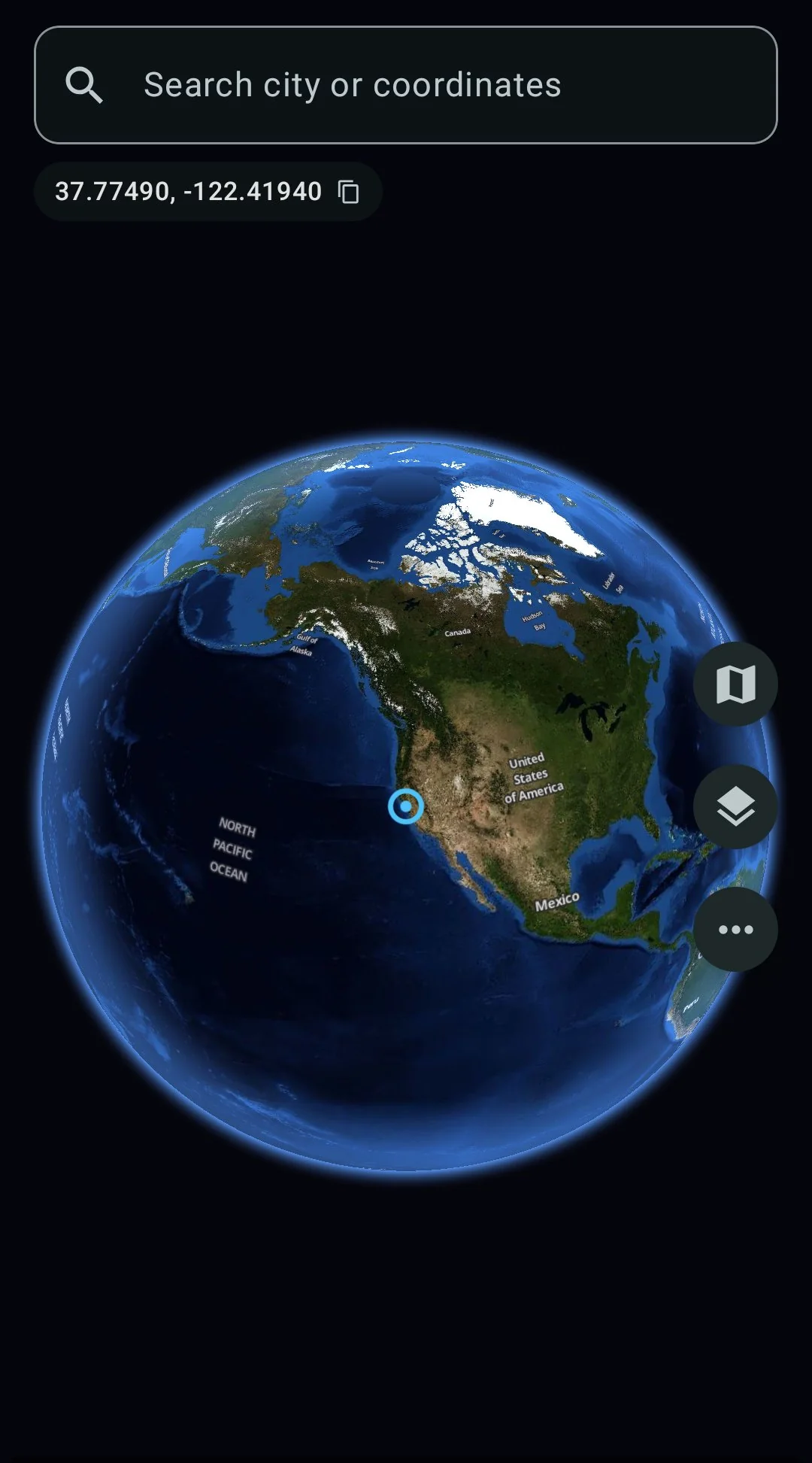
Spin the globe, search any city
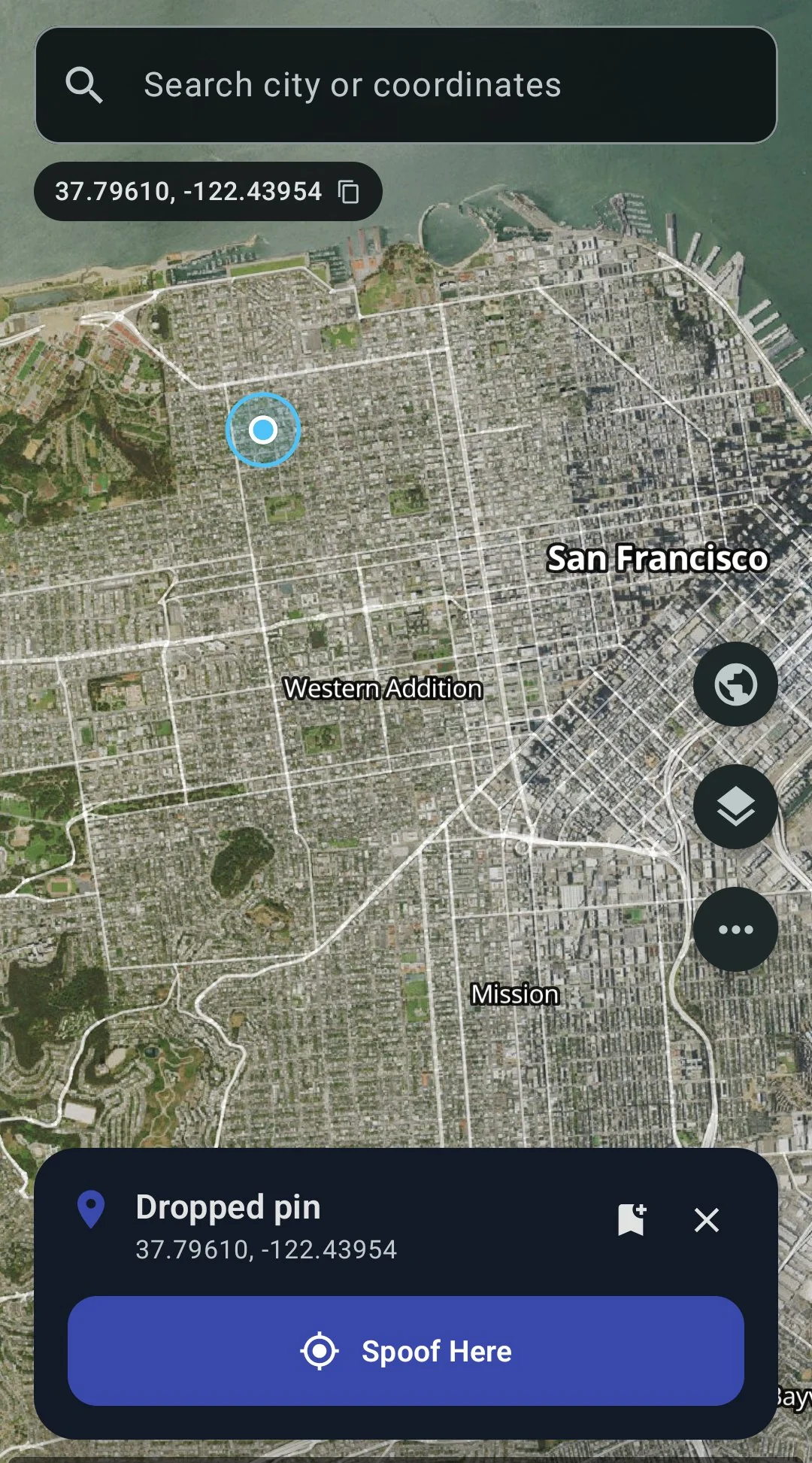
Tap anywhere, hit Spoof Here
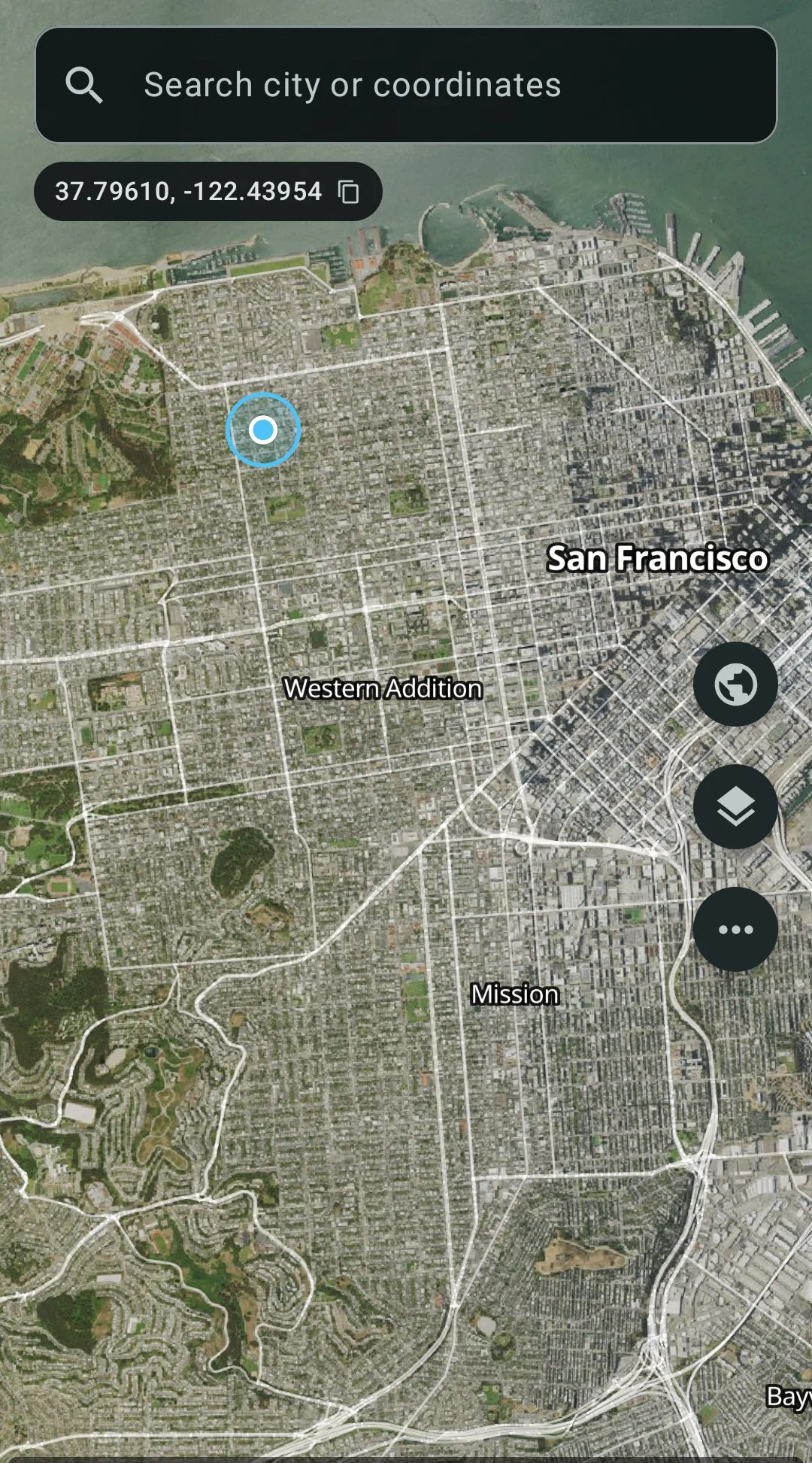
Satellite + street overlay
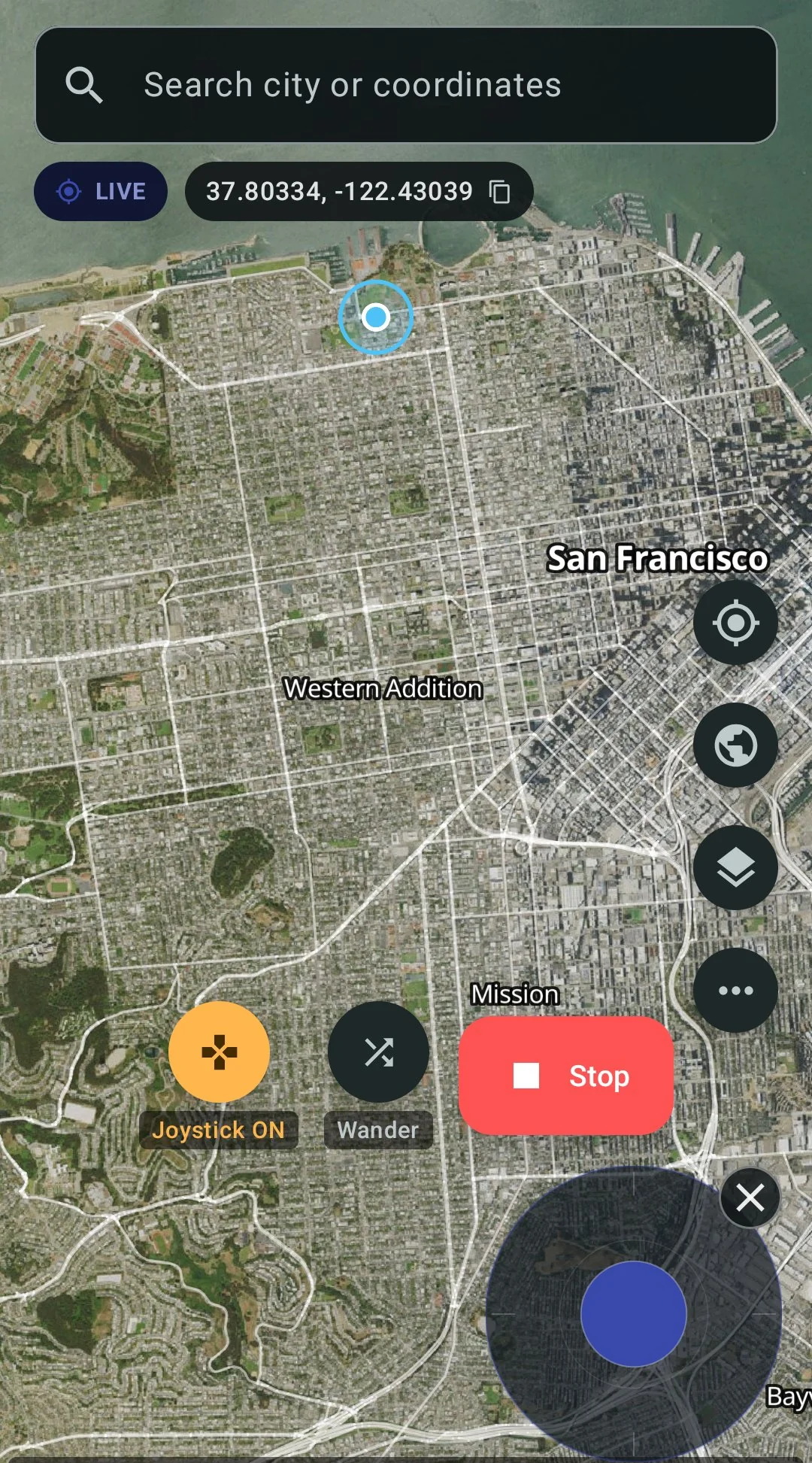
Live spoofing with joystick
The risks, plainly
Life360’s Terms of Service require you to provide accurate information and not to “interfere with the proper functioning” of the service. Faking your location violates those terms. Life360 could suspend your account.
Beyond the terms: if your circle members are tracking your location for safety reasons, faking it removes that safety net. The choice is yours, but the consequences are real and go beyond just an account ban.
FAQ
- How do you pause Life360 without it saying paused?
- Life360’s own switch shows your circle “Location Sharing Paused”, and turning off location services shows “Location permissions off” (Life360 help center). GPS Spoofer leaves both on and gives Life360 a location you choose instead. What Life360 then shows your circle is up to Life360; we have not tested it.
- How do you freeze your Life360 location?
- Pick a spot in GPS Spoofer and tap Spoof Here. Your phone reports that spot for GPS, network and fused location until you tap Stop, so Life360 reads the same location the whole time. The Full edition hides the mock-location flag from Life360.
- Can Life360 detect fake GPS on Android?
- Any app can read Android’s mock-location flag, Life360 included, and that flag is what gives a plain fake-GPS app away. GPS Spoofer’s Full edition hides the flag from Life360, by patching it or by running it in a container.
- Does this work on Android 14, 15, 16, and 17?
- Yes. GPS Spoofer runs on Android 8 and up, including Android 17 QPR1.
- Do I need to root my phone?
- No. Container mode and Hide from Apps both work without root. ADB stealth needs a one-time computer connection but does not root the phone.
- Can Life360 detect Container mode?
- Container mode does not modify Life360’s APK, so there is no signature change to detect. Life360 would have to check whether it is running inside a container. Nothing stops Life360 from adding that check in an update.
- Can I switch between real and fake location?
- Yes. Tap Stop in GPS Spoofer and your phone goes back to real GPS. With Container mode you can also keep your normal Life360 for real sharing and open the container copy for the spoofed location.
- What is the difference between the Play and Full edition?
- The Play edition ($4.99 on Google Play) has the joystick, routes and speed control but does not hide mock location, so Life360 can see the location is mocked. The Full edition ($10) hides the mock flag, which is what you need for Life360.
GPS Spoofer — $10 once, no root
Works with other apps too
The same app and the same $10 covers every app on your phone:
- GPS Spoofer main page — features, pricing, and download
- Pokemon GO spoofing guide
- Change your Tinder location
- Change your Bumble location
- Best fake GPS app for Android 2026 — full comparison